Add a band or an existing booking
Add a band you know and put an already arranged gig in your diary.
Add bands you know and invite them to GigFellas. When you first bring your calendar across, you can also record gigs you’ve already arranged without using credits.
Your five-day calendar import
Each venue gets one five-day window. In Calendar, choose Record existing booking, then Start importing when you’re ready. Opening the form does not start the clock. The deadline is shown in UK time.
During those five days, add your existing agreements for any future date, even months ahead. New offers always use credits. You cannot import a booking into a date where you have already sent an offer.
After the window ends, your imported gigs stay in your diary. You can correct times, fees and notes or remove an entry, but you cannot move it to another date. Book new gigs by adding a date and sending an offer using a credit.
Find the band first
- Open Calendar and choose Record existing booking. To use a particular date, open that date first and choose the same button.
- Enter at least two letters of the Band name. Add their Town or area to narrow the results.
- If the right band is listed, check their location and choose Choose. Use an existing result even if the profile has not yet been claimed.
- Check the booking date, times and agreed fee. Tick I have already arranged this booking with the band, then choose Record existing booking. You’ll see Booking saved, with no credit used.
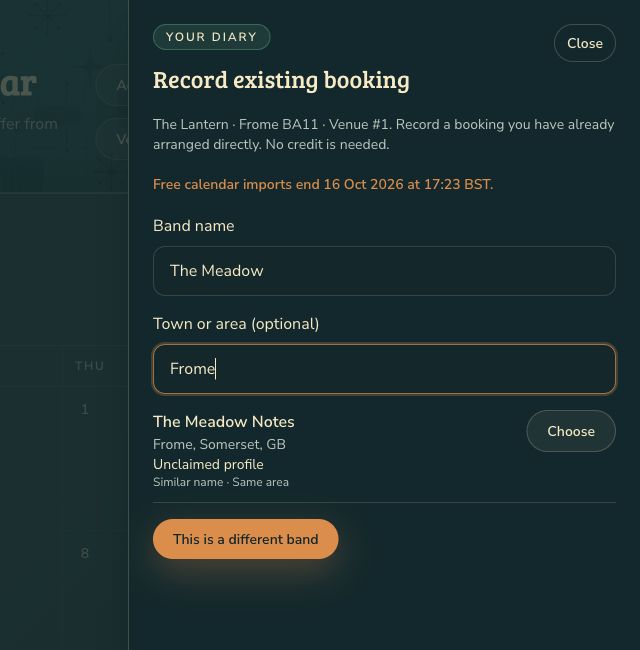
A band may be signing up at the same time as you. Searching first helps you use the same profile.
Add a band who is not listed
- Choose Add a new band if there are no results, or This is a different band if the results are other acts.
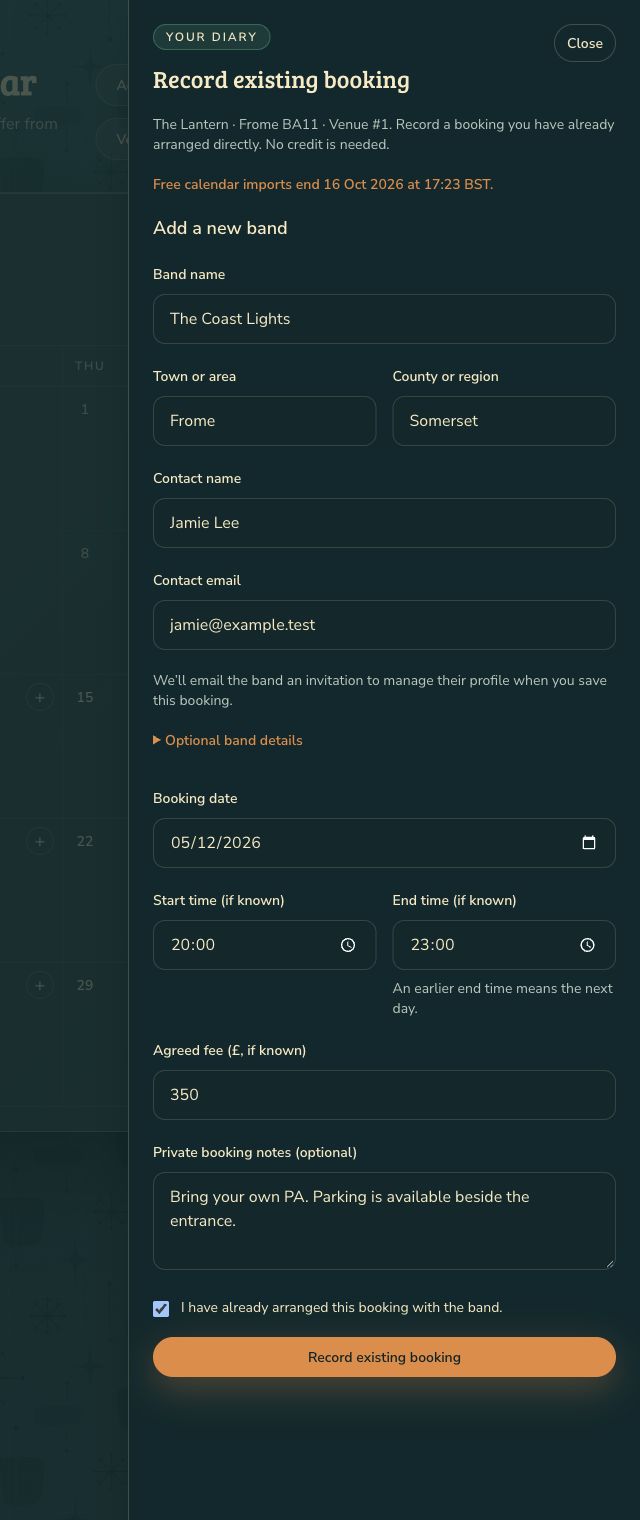
- Check the band name and town carried over from your search. Add their county or region, contact name and contact email.
- Add any optional details you know, such as a genre or performance link.
- Check the booking date, times and agreed fee. A selected calendar date stays selected; its show details or your venue defaults are filled in where available. Correct them to match your agreement.
- Tick I have already arranged this booking with the band, then choose Record existing booking.
You’ll see Booking saved. For a new, unclaimed band, the message tells you whether their invitation has been emailed, is about to be emailed or could not be sent. The band can join and manage their profile. Your diary entry does not need them to sign up first.
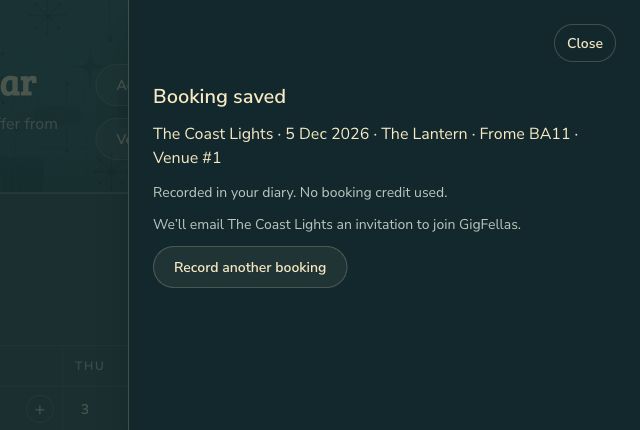
This records an existing agreement; it does not send a new gig offer. If you have already sent an offer for this date, complete the booking through your offers instead.
Add a band after your import window
Choose Add a band in Calendar. Search first, then add their details if they are not listed. Choose Add band. A new band gets an invitation to manage their profile. This does not record a gig or use a credit.
To book them, add a date, choose the band and send an offer. Sending the offer holds one credit until the band confirms.
If something needs checking
Correct any highlighted fields before saving. If another similar profile is found, review it and use that band where appropriate. Only confirm a different band when you are sure. If the search fails, choose Try again.
Check a warning about another booking with the band directly. You can use Edit diary entry to correct details later. Removing the diary entry does not cancel your agreement.
Added bands can appear as possible matches for future dates even while some profile details are missing. Check the details with them; their completed profile helps refine future matches.
Next step
For a gig you have not agreed yet, send an offer instead.