Get your venue ready
Publish your venue and manage each venue from one account.
Start with one venue. You can add others to the same account whenever you need them.
Set up your venue
- Create an account, verify your email and choose the venue option.
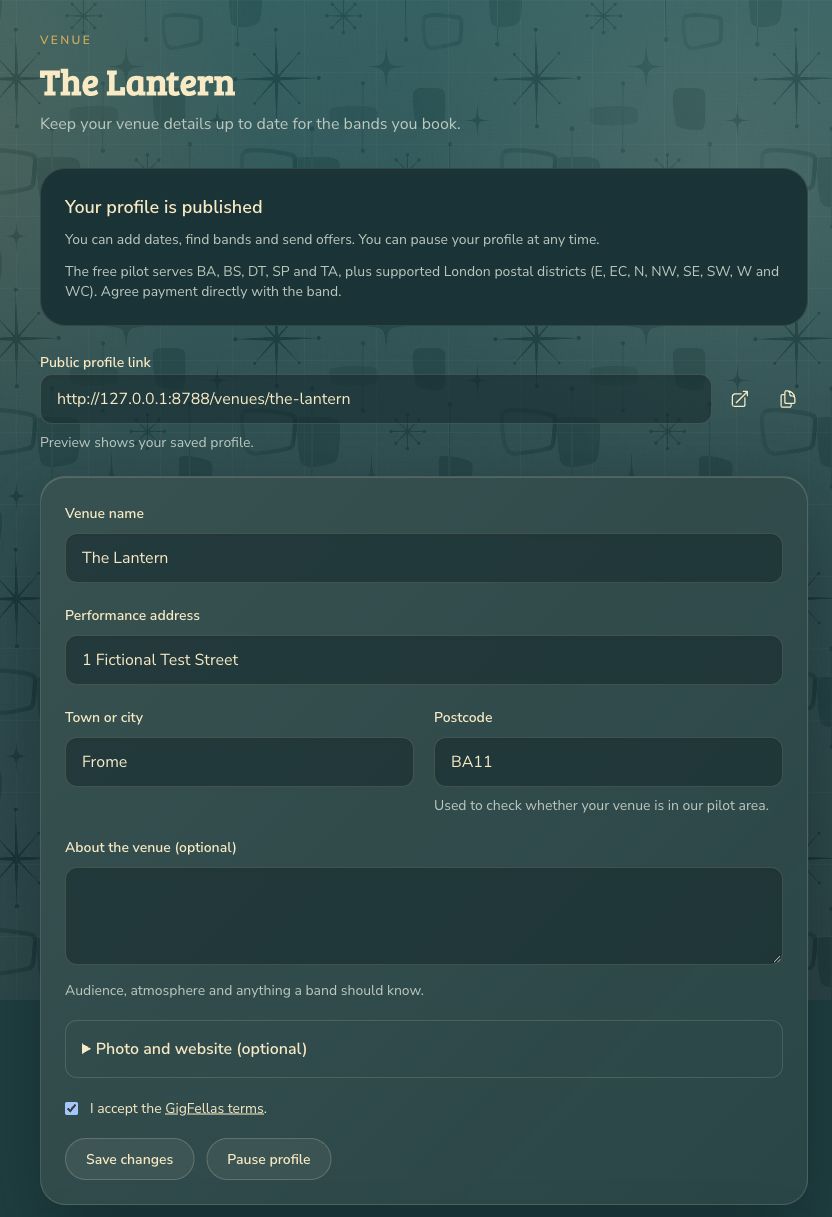
- Enter your Venue name, Performance address, Town or city and Postcode. Venues in any postcode area can publish. Your postcode determines eligibility for free credits.
- Add a short introduction and a photo if you have one. Read and accept the terms, then choose Publish profile.
- If you need more time, choose Save draft. You can finish from Profile later.
Save your usual gig details
In Profile, add your usual start/end times, load-in, playing time, offer fee and brief. Choose Save defaults. New dates start with these details, and you can change them for each gig.
Manage more than one venue
- Open Switch venue beside the venue name in the menu. On mobile, open the menu first.
- Choose Add venue to create another venue, or select an existing venue to work on it.
- Check the current venue name before adding a date or sending an offer. Save changes before switching; you may be asked about unsaved work.
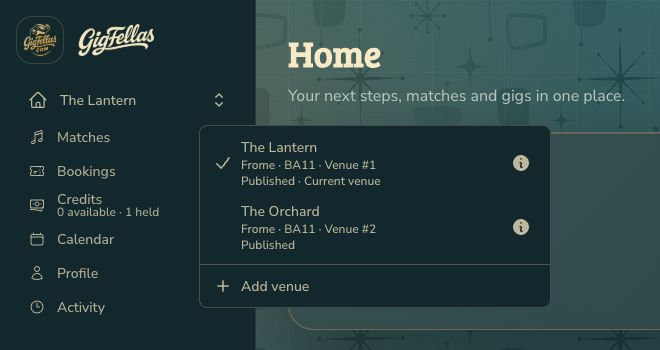
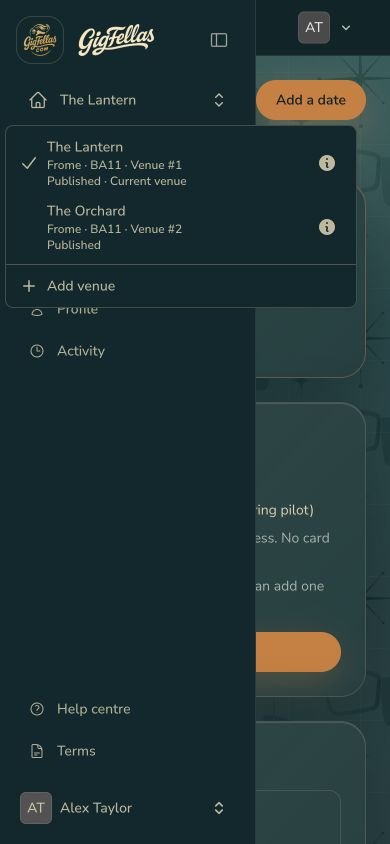
Each venue has its own profile, dates, bookings and credit balance. Credits are not pooled between your venues.
If something goes wrong
Publishing shows what is missing if your venue is not ready. Check the highlighted fields. Being outside the free-credit area does not block publishing. Pause profile lets you take a published venue offline; publish it again when you’re ready.