Add a date and find bands
Add the gig details and review bands that could be a good fit.
Before you start, publish your venue profile and check that the correct venue is selected.
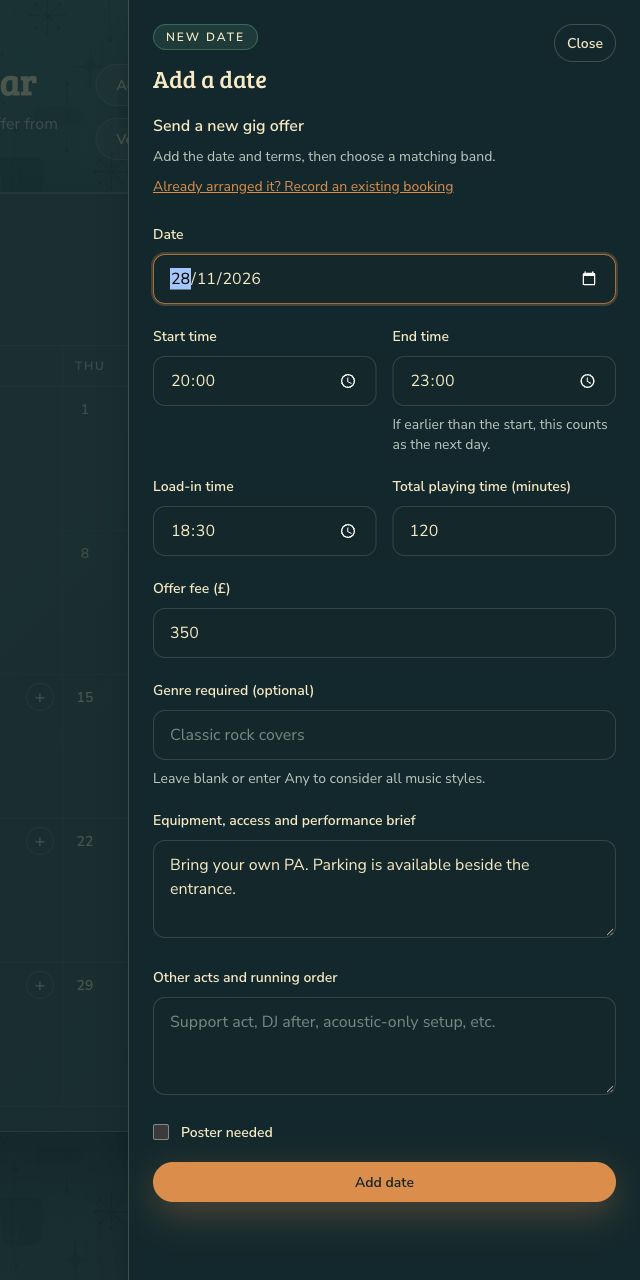
Add a date
- Choose Add a date from Home or Calendar.
- Set the Date, Start time and End time. An end time earlier than the start means the gig finishes the following day. Times are UK local time.
- Check the Offer fee (£), playing time and load-in. Your saved venue defaults are filled in where available.
- Add an optional genre and any equipment, access or performance details the band needs. Leave the genre blank, or enter Any, to consider all styles.
- Choose Add date to see suitable bands.
Review the matches
- Open Matches, or open your date in Calendar using Review matches or Review date.
- Open a band’s match to review their profile, fee and gig details. A match is a possible fit, not a booking.
- Use Edit date to update an unsent date. You can also use Delete date if you no longer need it.
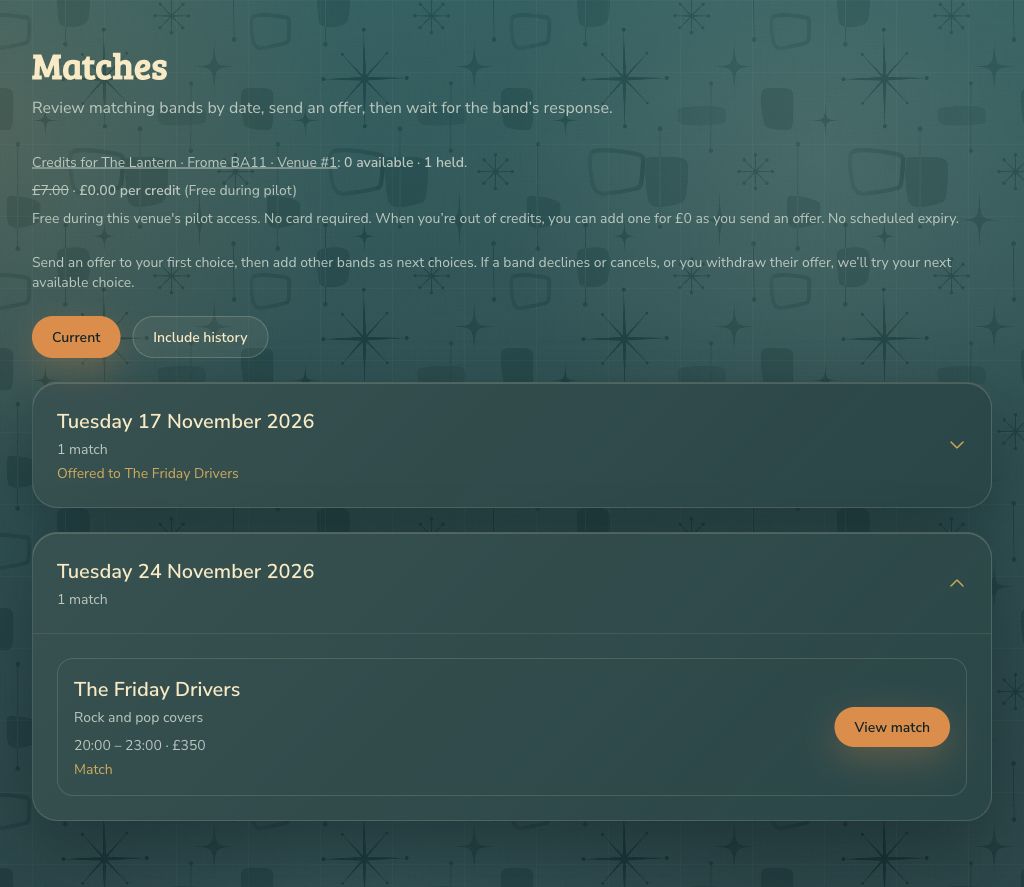
Matches are checked as you work on your dates. You can use Refresh matches to check again. If a new match appears later because a band’s details or availability changed, you may also receive an email and see it in Activity.
If something goes wrong
No current matches? Check the date, fee and genre, or try again later. Imported bands may have fewer details, so check their profile and agree the gig with them. A band that becomes unavailable is removed from current suggestions. An old link may explain why a match is no longer available.
Once you’ve sent an offer, use the offer or booking change options to agree revised details rather than editing the date as though nothing has been sent.